

JavaScript Modules: Import and Export Explained

Introduction
As your JavaScript projects grow, keeping all code in a single file becomes difficult to manage. It becomes harder to read, debug, and reuse code. This is where modules help.
JavaScript modules allow you to split your code into multiple files, each responsible for a specific task. You can then export functionality from one file and import it into another.
In this article, we will understand why modules are needed, how to export and import code, the difference between default and named exports, and the benefits of writing modular code.
Main Content
Why modules are needed
Imagine writing all your code in one file:
// hundreds of lines of mixed logic
function add() {}
function fetchData() {}
function validateForm() {}
Problems with this approach:
Difficult to read and maintain
Hard to reuse specific parts
Risk of variable name conflicts
Not scalable for large projects
Modules solve these problems by organizing code into separate files.
For example:
math.jsfor calculationsapi.jsfor API callsutils.jsfor helper functions
Each file has a clear purpose.
Exporting functions or values
To use code from one file in another, we first need to export it.
Named export
// math.js
export function add(a, b) {
  return a + b;
}

export const PI = 3.14;
Here, we are exporting a function and a constant.
Importing modules
To use exported values, we use the import keyword.
// app.js
import { add, PI } from "./math.js";

console.log(add(2, 3));
console.log(PI);
Important points:
Use
{}for named importsThe file path must be correct
Use
./for local files
Default vs Named Exports
JavaScript supports two types of exports.
Default export
A file can have only one default export.
// greet.js
export default function greet() {
  console.log("Hello");
}
Importing default export:
// app.js
import greet from "./greet.js";

greet();
Notice that we do not use {} for default imports.
Named exports
A file can have multiple named exports.
// utils.js
export function sum(a, b) {
  return a + b;
}

export function multiply(a, b) {
  return a * b;
}
Importing named exports:
import { sum, multiply } from "./utils.js";
Difference between default and named exports
| Feature | Default Export | Named Export |
|---|---|---|
| Number per file | One | Multiple |
| Import syntax | No curly braces | Uses curly braces |
| Name during import | Can be changed | Must match export name |
Example:
import greet from "./greet.js"; // default
import { sum } from "./utils.js"; // named
Benefits of modular code
Using modules provides several advantages:
Better code organization
Easier maintenance
Reusability of code
Avoids global variable conflicts
Makes large projects manageable
Modules are widely used in modern JavaScript development.
Simple Example
math.js
export function add(a, b) {
  return a + b;
}
app.js
import { add } from "./math.js";

console.log(add(5, 3));
Visual Explanation
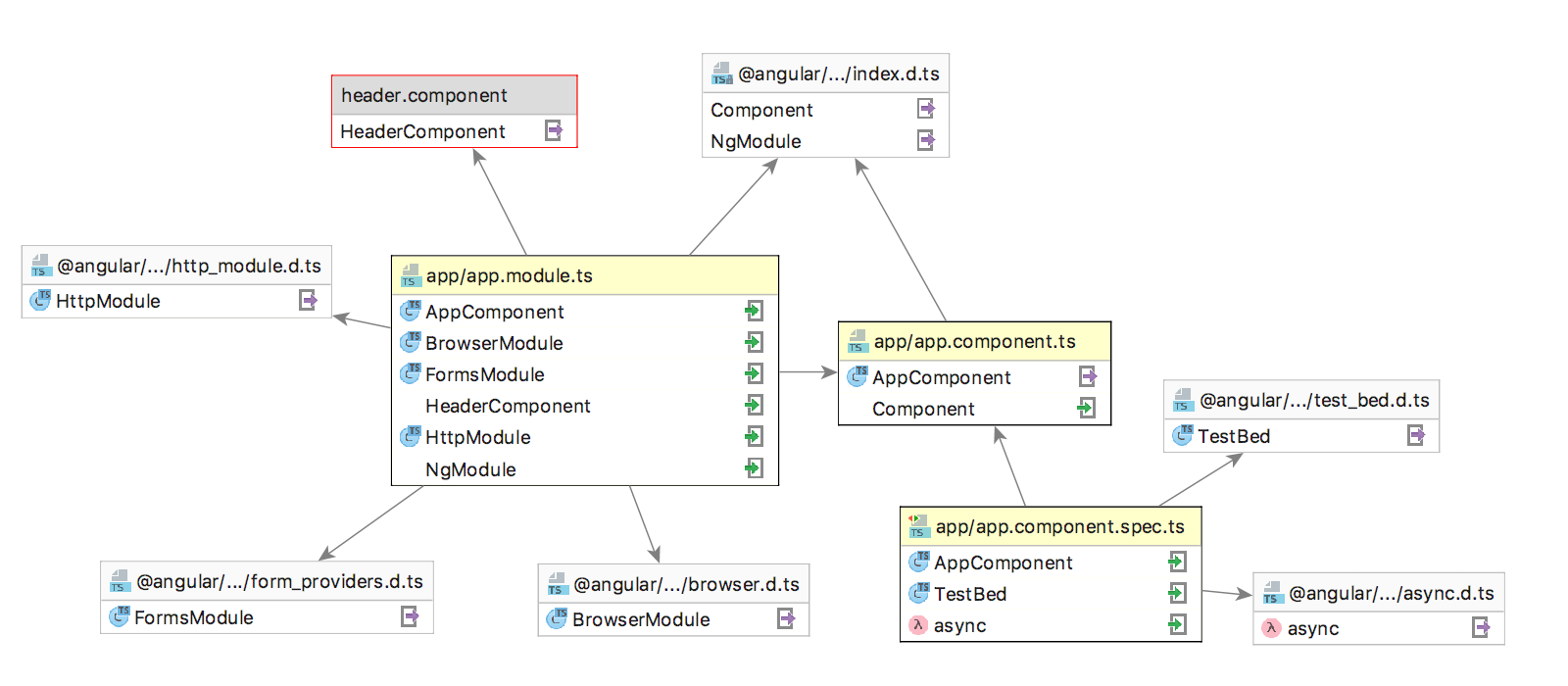
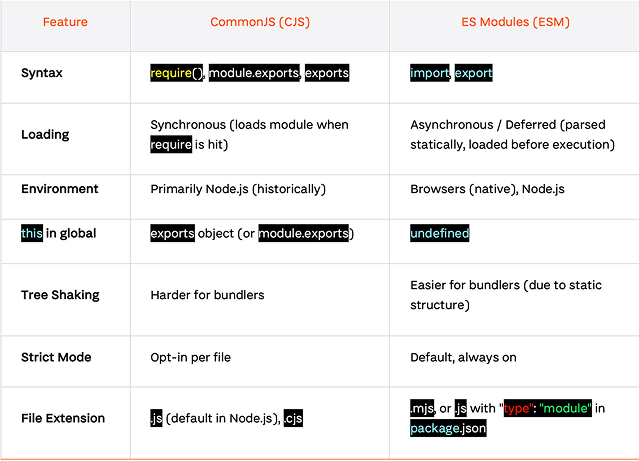
These diagrams show how one file exports functionality and another file imports and uses it.
Practice Assignment
Try the following:
Create a file
student.jsand export:A function that prints a student's name
A constant for course name
export function printName(name) {
  console.log(name);
}

export const course = "JavaScript";
- Create another file
app.jsand import them:
import { printName, course } from "./student.js";

printName("Ravi");
console.log(course);
- Try creating a default export and import it.
Conclusion
JavaScript modules help organize code by splitting it into smaller, manageable files. By using export and import, we can share functionality between different parts of an application.
We learned how to export functions and values, how to import them into other files, and the difference between default and named exports. Modules make code cleaner, easier to maintain, and more reusable.
As you build larger projects, using modules will become an essential practice in writing structured and professional JavaScript code.


